
Remove the ads from your TV
CleanYourTV is a free, open-source project that switches off the ads, tracking and junk apps on Android and Google TVs, then gives you a clean home screen. Here is every step in plain English, with pictures.
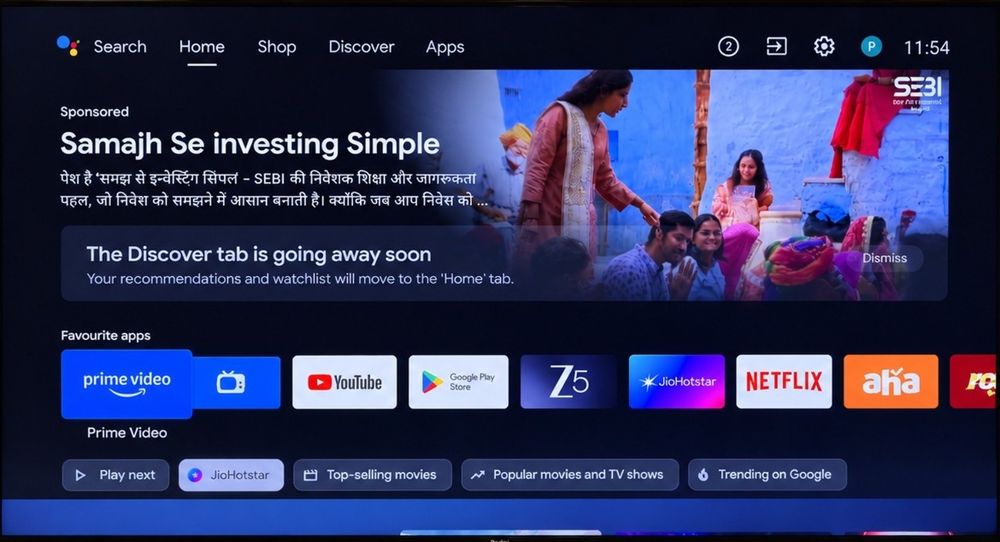
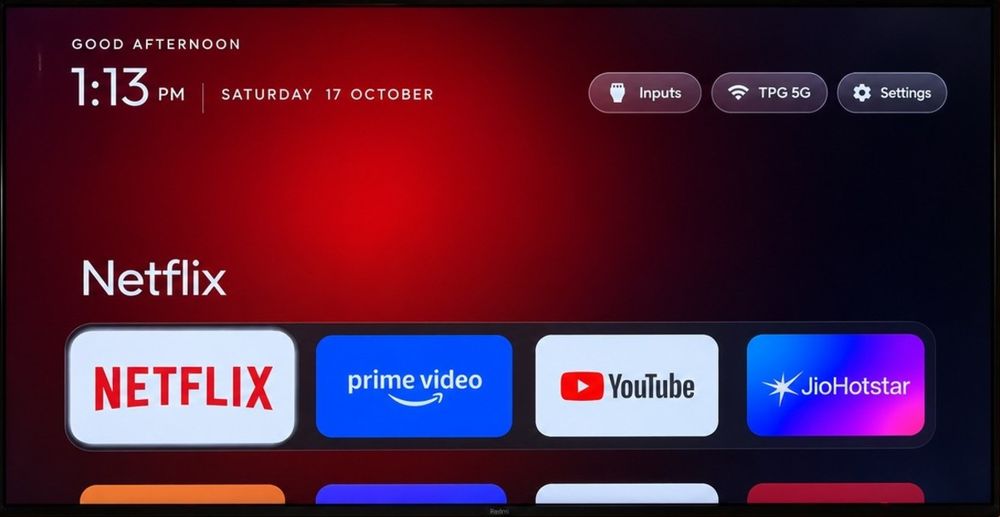 BEFOREAFTER
The same Xiaomi TV before and after. Drag the handle. Photos: the CleanYourTV project.
Does it work on my TV?
Android TV or Google TV
Sony, TCL, Xiaomi and many other brands. You get the clean-up and the new home screen. The project lists 508 tested models.
Amazon Fire TV
The clean-up works, but Fire TV won't hand its home screen to another app, so you keep Amazon's.
Samsung, LG, Roku, Vizio, Hisense VIDAA
These don't run Android. You can still turn off their tracking with the remote: cleanyour.tv/not-android.
Not sure? Open Settings on the TV. If you see Device Preferences or System → About → Android TV OS build, it runs Android or Google TV.
Six steps, one evening
Turn on developer mode
This unlocks a hidden menu. It doesn't change anything by itself.
On Google TV it's Settings → System → About → Android TV OS build. Press OK on it seven times until the TV says you're a developer.
Turn on debugging
Go back one screen to the new Developer options menu. Switch on USB debugging. If you also see Network debugging or ADB debugging, switch that on too.
Keep the TV on the same Wi-Fi as the phone or computer you'll use next. No cable is needed.
Pick how to run it
An Android phone (simplest)
Free community apps do it in a few taps: find the TV on Wi-Fi, show you a plan, save a restore point, switch things off. They're listed at cleanyour.tv/app. Independent developers make them; we haven't tested them.
A computer with Claude Code
Download the project from GitHub, open it in Claude Code, paste in PROMPT.md and say which TV you have. Claude types every command for you. iPhone owners should use this way.
Say yes on the TV, then choose your apps
A box pops up on the TV. Tick Always allow and press Allow. Then answer a short checklist: which apps you actually use, which four go in your dock, and whether to keep the voice assistant and Chromecast.
The ads, the maker's tracking and the preloaded apps are switched off. Nothing is uninstalled.
Enjoy the new home screen
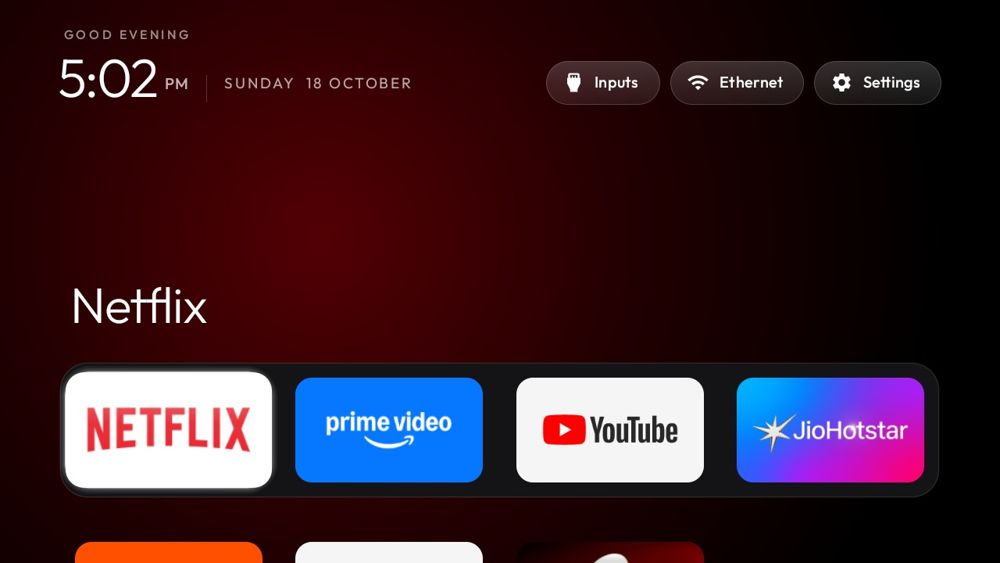
A clean, Apple TV-style home: your favourite apps in a dock, plus buttons for Inputs, Wi-Fi and Settings. Nothing else.
Turn debugging off again
Back in Developer options, switch USB and network debugging off. That closes the door the tools used, so nothing else on your Wi-Fi can use it.
Before you start
You can undo it
Apps are switched off, never deleted, and the project saves what it changed. One restore command puts the old home screen and every app back.
Missing an app?
The new home has an App library: one press puts a switched-off app back on Home.
Some features lean on old apps
On one Xiaomi model, the live-TV channel buttons needed the original launcher. If something you use stops working, turn that app back on.
Free, and as is
CleanYourTV is open source under the MIT licence: free, with no warranty. Read its README before you begin.
Get the next fix in your inbox
Every so often we send one plain-English guide to a tech annoyance like this one. No spam. To unsubscribe or ask a question, email hello@callgentic.com.